11 Privacy Settings You Definitely Haven't Changed Yet
Your phone is tracking you, your browser is snitching, and your apps are gossiping. Here are the privacy settings you should have changed yesterday.
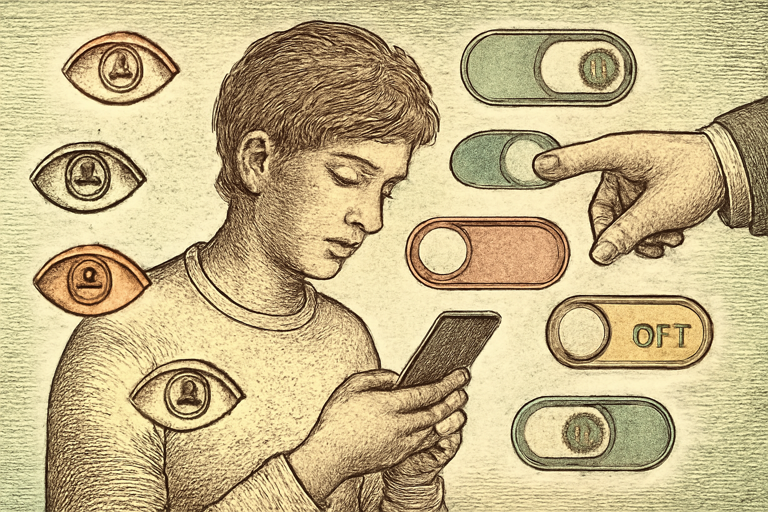
Your phone knows where you sleep, where you work, what you eat, and how long you spend in the bathroom. That’s not a conspiracy theory. That’s your location history settings being left on default.
Here are 11 privacy settings that are currently set to “share everything” and how to fix them.
1. Location History (Turn It Off)
Google Maps and Apple Maps track everywhere you go by default. Go to your Google Account > Data & Privacy > Location History and pause it. On iPhone: Settings > Privacy > Location Services and set apps to “While Using” instead of “Always.”
You don’t need Uber tracking you when you’re not in an Uber.
2. Photo Location Data
Every photo you take embeds your GPS coordinates in the file. When you share that photo, you’re sharing where you were. Use an EXIF viewer to see what data your photos contain. Spoiler: it’s more than you think. Then use an EXIF stripper before sharing photos online.
3. Ad Tracking ID
Both iOS and Android assign you an advertising ID that follows you across apps. Reset it regularly or turn it off entirely. iPhone: Settings > Privacy > Tracking > toggle off “Allow Apps to Request to Track.” Android: Settings > Google > Ads > Delete advertising ID.
4. Voice Assistant Recordings
Siri, Google Assistant, and Alexa record your voice commands and often have humans reviewing them. Go into each assistant’s settings and delete your history. Better yet, disable “improve Siri” and similar opt-ins.
5. Browser Cookies (Third-Party)
Third-party cookies track you across websites. Safari blocks them by default now. Chrome will… eventually. Meanwhile, go to Chrome Settings > Privacy > Cookies and block third-party cookies. Your browsing experience won’t change. Advertisers’ data about you will.
6. App Permissions (Audit Monthly)
That flashlight app does not need access to your contacts. Go through your app permissions quarterly. Revoke anything that doesn’t make sense. Camera access for Instagram? Sure. Camera access for a calculator? Absolutely not.
7. Cloud Backup Encryption
iCloud backups are encrypted, but Apple holds the key by default. Enable Advanced Data Protection (Settings > Apple ID > iCloud > Advanced Data Protection) to use end-to-end encryption where only you have the key.
8. Social Media Default Sharing
Instagram, TikTok, Twitter/X - check who can see your posts, who can message you, and whether your profile is discoverable by phone number or email. Set these to friends/followers only unless you’re building a public presence intentionally.
9. Email Tracking Pixels
Most marketing emails contain a tiny invisible image that tells the sender when you opened the email, where you were, and what device you used. Apple Mail blocks these by default with Mail Privacy Protection. Gmail doesn’t. Consider disabling remote image loading.
10. Connected Apps and Services
Go to your Google, Apple, Facebook, and Twitter accounts and check “Connected Apps.” You’ll find services you signed up for in 2019 and forgot about, still with access to your data. Revoke everything you don’t actively use.
11. Wi-Fi Auto-Join
Your phone constantly broadcasts the names of Wi-Fi networks it’s looking for. This can be used to track you or trick you into connecting to a fake network. Turn off auto-join for networks you don’t use regularly.
Quick Privacy Toolkit
For day-to-day privacy:
- Strip metadata from photos before sharing with the EXIF stripper
- Encrypt sensitive notes with a text encryption tool before storing them
- Create self-contained secure notes that are encrypted in your browser
The goal isn’t paranoia. It’s informed consent. Right now, most of your settings are “share everything” because that’s what makes companies money. Changing them to “share only what I choose” takes 20 minutes and lasts until you get a new phone.
Twenty minutes. Your privacy is worth twenty minutes.